Navigation: Projects → Stakeholders
Stakeholders section is used to identify, review, and manage Project stakeholders. It provides information about stakeholder roles, influence, interest, and other relevant details to support stakeholder analysis, communication planning, and ensure stakeholder involvement in the Project.
Review Project Stakeholders
In order to review Project stakeholders go to Projects → Stakeholders and click on the title of the selected Stakeholder or click button  .
.
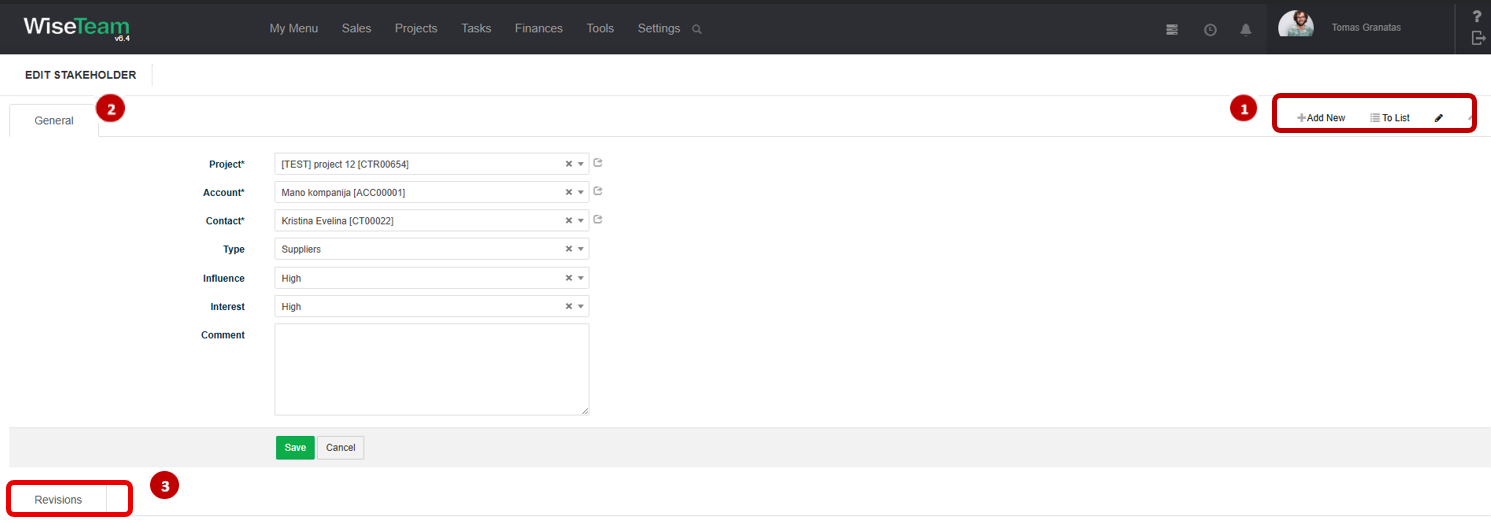
1. Available navigation buttons:
- Add New: is used to create new Stakeholder.
- To list: is used to go to the list of Stakeholders.
 : is used to create custom fields.
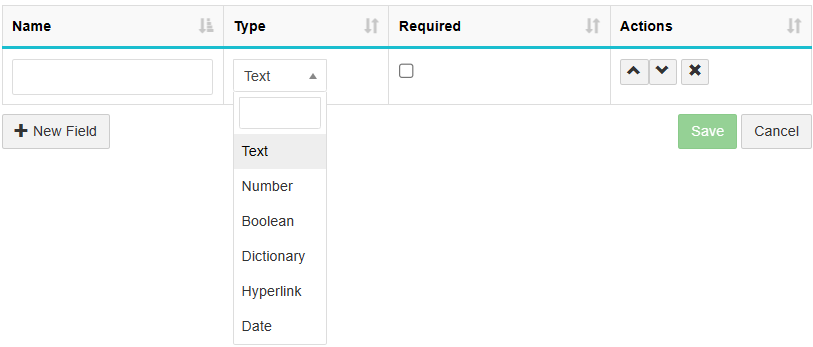
1. Press New Field to create field.
2. Fill in the field name.
3. Select field type.
4. Press Save to save field.
2. General Stakeholder information is provided in tab You have to fill in this information when creating new Stakeholder.
3. Available Info Tab:
- Revisions: allows seeing the history of actions taken with the Stakeholder.
Create new Stakeholder
To create new Stakeholder follow these steps:
1. Go to Projects → Stakeholders.
2. In the list of Stakeholders click  to add new stakeholder.
3. Fill in fields in tab General:
- Project: indicates which Project the Stakeholder is related to.
- Account: Stakeholder account (list is taken from Sales → Accounts). Click
 to add new Account and fill information.
 - Contact: contact person regarding this Stakeholder (list is taken from Sales → Contacts related to selected Account). Click to add new contact and fill information.
- Type: indicates the Stakeholder type.
- Influence: (Low, High) describes the Stakeholder’s level of influence on the Project.
- Interest: (Low, High) describes the Stakeholder’s level of interest in the Project.
- Comment: allows entering additional information about the Stakeholder.
4. Click Save.
Perform actions in the list of Stakeholders
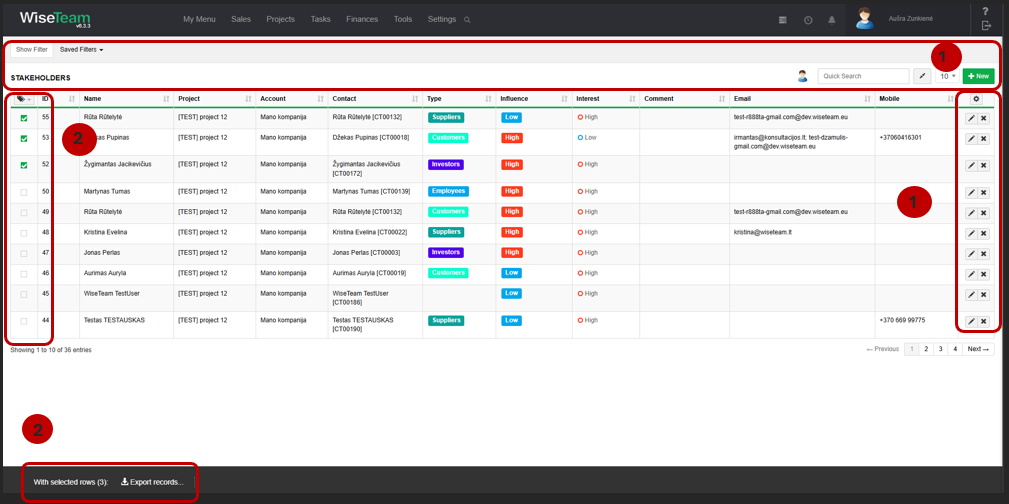
1. As in all lists, you can work with Stakeholders by using standard functionality buttons: filter Stakeholders, add new Stakeholder, change table properties, search Stakeholder, narrow or extend information viewable in table cells, edit or add additional information to the Stakeholders, delete Stakeholder from the list.
2. After selecting single or multiple Stakeholders by marking lines  or selecting all Stakeholders by clicking button
  and selecting Select All, it is possible to export the list of selected Stakeholders to MS Excel.